

Introduction
This documentation provides a comprehensive guide on installing and utilizing JMeter and BlazeMeter for efficient performance testing. Follow the step-by-step instructions to install JMeter on your device and explore the process of setting up test plans manually or with the assistance of BlazeMeter's browser extension. Learn how to record HTTP requests, generate test plans, configure test parameters, and execute tests using JMeter's UI and the command line interface. This guide empowers you to optimize your performance testing efforts with the powerful capabilities of JMeter and BlazeMeter.
JMeter Installation
Find the appropriate binary for your device here. I am going to download this binary:
https://dlcdn.apache.org//jmeter/binaries/apache-jmeter-5.5.zip
Unzip and copy the contents of the archive to the Program Files directory.
You can access the JMeter UI by going inside the apache-jmeter-5.5/bin/ directory and clicking on the ApacheJmeter JAR file. This is where you can add your test plans. You can do this manually or you can install BlazeMeter to record your http requests in your browser and write them down to a jmx file, which you can then use as your test plan.
BlazeMeter Installation
Get the BlazeMeter Chrome extension and login to BlazeMeter in order to get the jmx file output.
Go to the page you want to test in your browser and click on the BlazeMeter extenstion. Here you can name your test plan and click on record whenever you are ready to start tracking your http requests.
When you’re done you can download the jmx file, which you can then open inside JMeter (File/Open).
You can configure the number of requests sent by adding a Thread Group and changing the Number of Threads (users) and Loop Count fields.
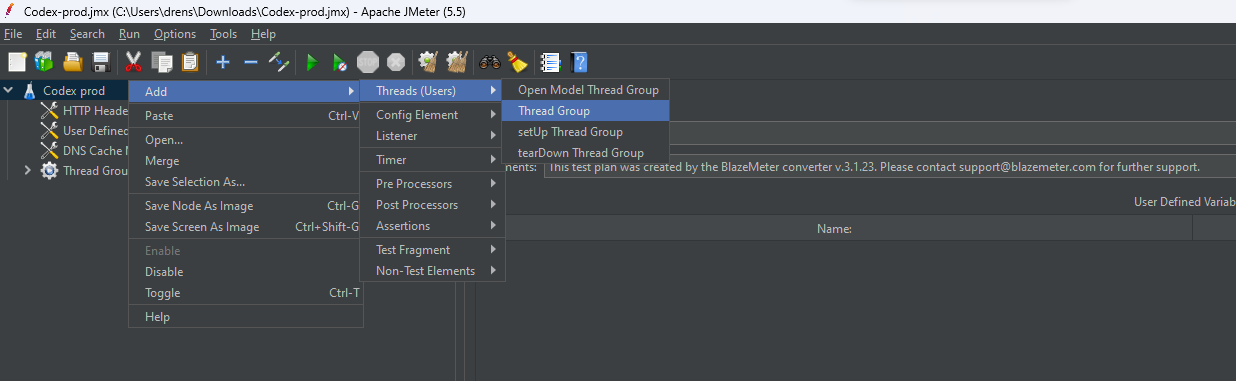
To execute this Test Plan, you first need to save your changes to the .jmx file and then either click the green arrow icon on the top bar or use the command line interface for more advanced options and reporting. To use the command line interface, you need to open your terminal as an administrator in the Apache JMeter bin directory and run the following command:
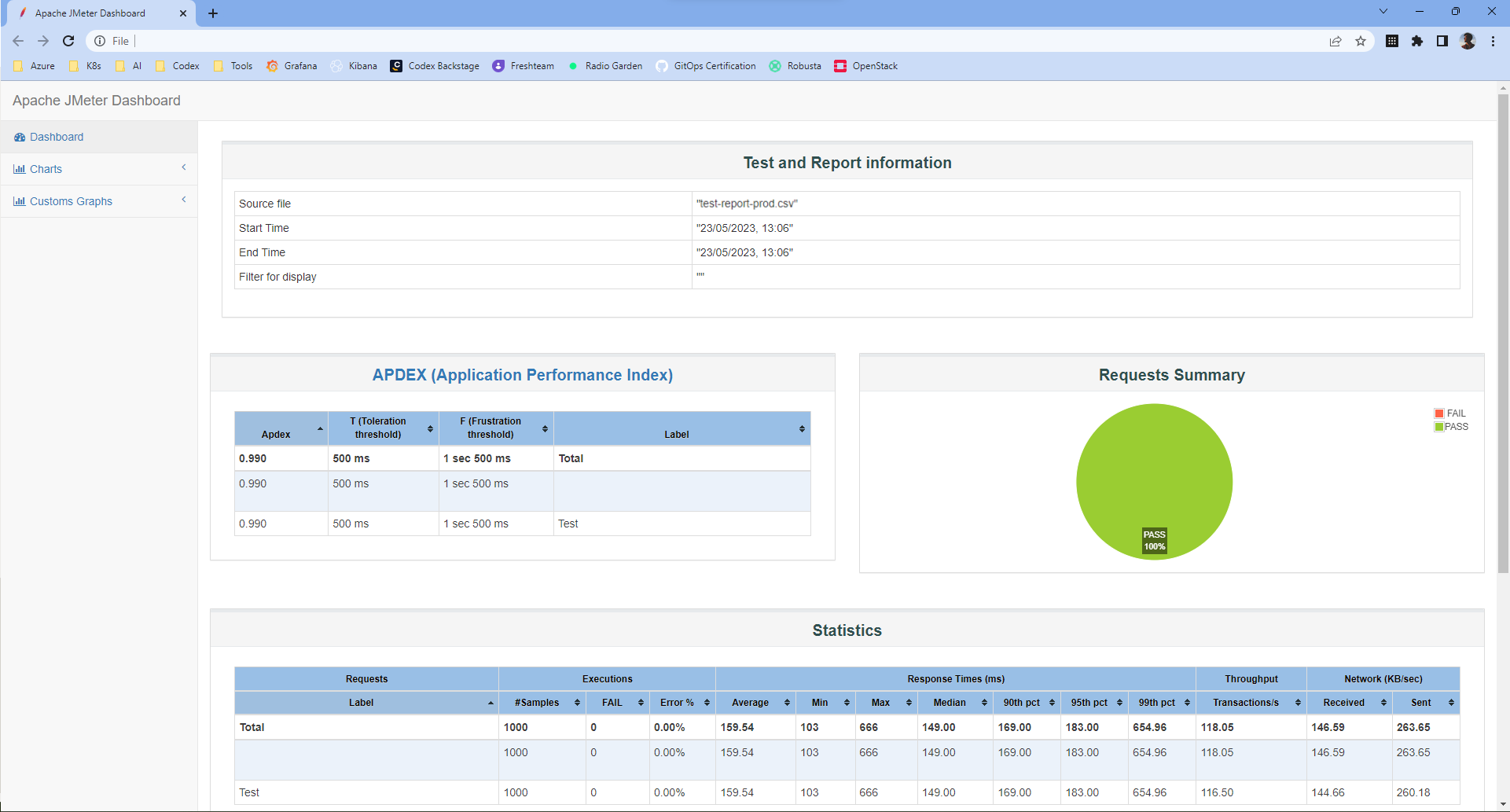
jmeter -n -t "C:\Users\user\Path\To\File\ProductionLoadTest.jmx" -l "C:\Users\user\Path\To\File\test-report-prod.csv" -e -o "C:\Users\user\Path\To\File\Report-prod"This command will run the Test Plan in non-GUI mode (-n), specify the Test Plan file (-t), generate a CSV file with the test results (-l), and create an HTML report dashboard (-e -o) in the specified directory.
Clicking on the created index.html file will reveal more data about your stress test as seen below:
Conclusion
JMeter and BlazeMeter are powerful tools for performance testing that can help you ensure the quality and reliability of your web applications. By using JMeter and BlazeMeter, you can benefit from the following advantages:
- You can record HTTP requests from your browser and generate test plans automatically with BlazeMeter's Chrome extension.
- You can execute tests using both the JMeter UI and the command line interface, depending on your preference and needs.
- You can scale your tests beyond the limits of JMeter by using BlazeMeter's cloud service, which supports various types of databases and offers phenomenal support.
- You can create an HTML report dashboard to analyze the test results and identify bottlenecks and errors.
Some of the use cases for JMeter and BlazeMeter are:
- Load testing: You can simulate a heavy load on a server, a group of servers, a network, or an object to measure its performance under different load types.
- Stress testing: You can test the breaking point of your system by increasing the load until it fails.
- Longevity testing: You can test the stability and reliability of your system over a long period of time.
- Functional testing: You can test the functionality of your web application by using assertions and validations.
I hope you find this guide useful and informative. Happy testing!